
 English
 Español
 Français
 Deutsch
 Português
 日本語
日本語
 中文
中文
 العربية
 한국어
한국어
 Italiano
 Русский
 Türkçe
 Nederlands
 Polski
 हिन्दी


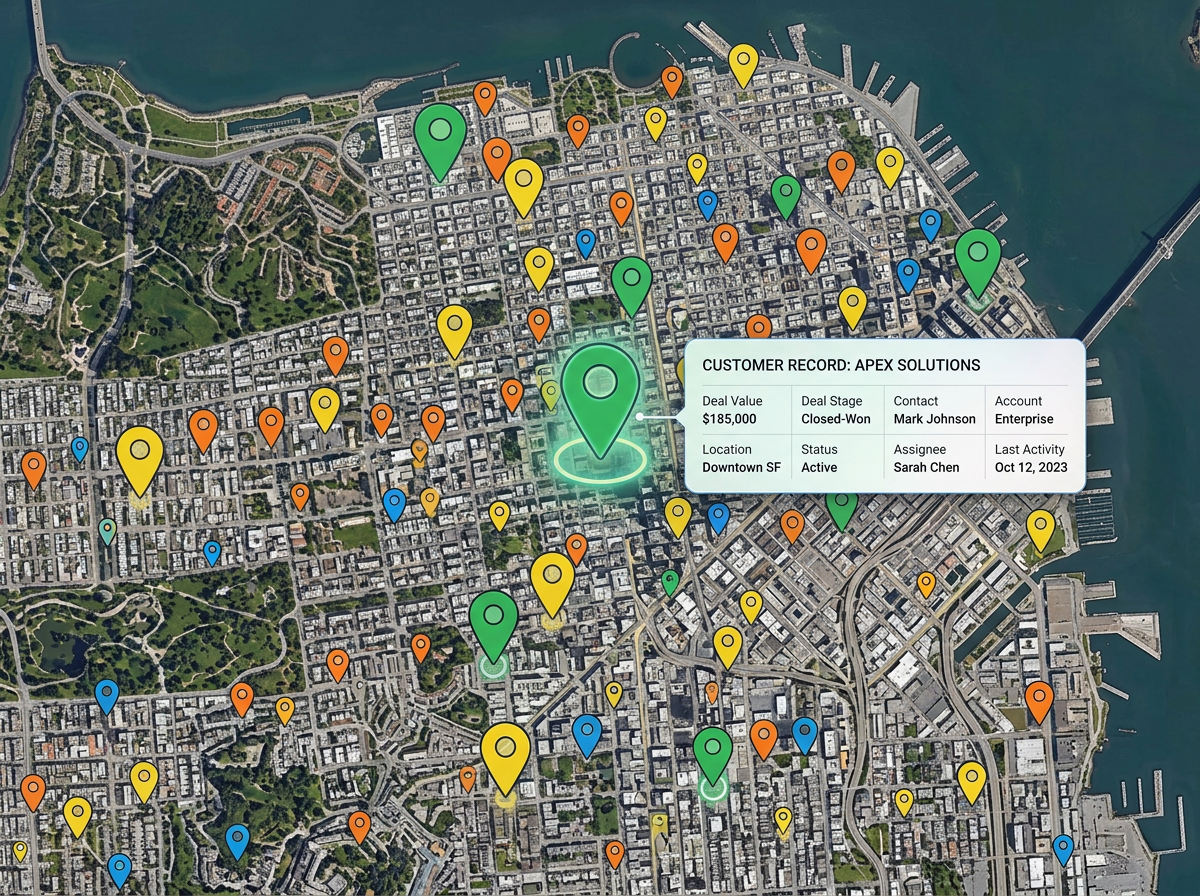
Customer and lead lists
Drop your CRM export on the map. Color by stage, size by deal value, and find pockets of opportunity that a list of rows would never show.
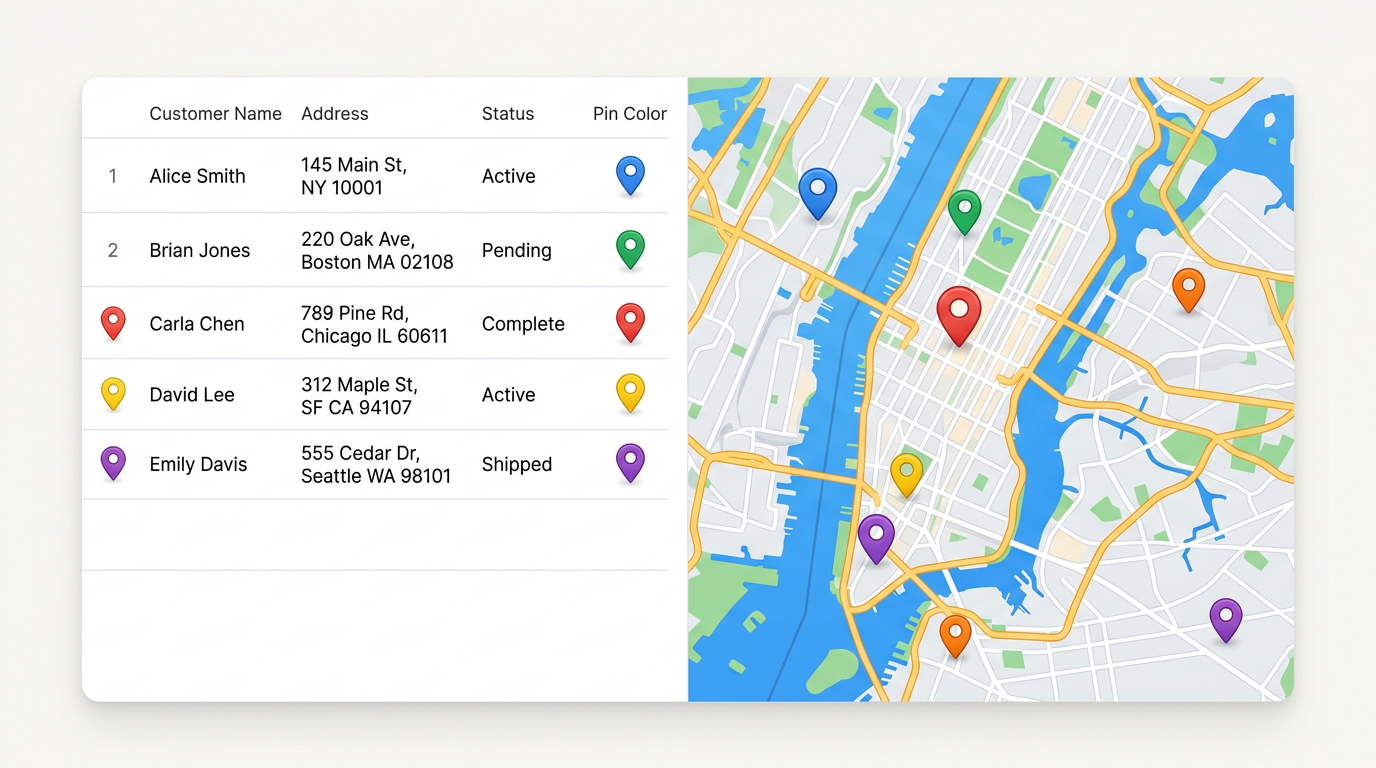
Drop a CSV or Excel file with addresses, latitudes, or zip codes and every row turns into a pin on the map. Style by any column, share a link, and update the file later without rebuilding.
★ ★ ★ ★ ★“The platform allows you to import data from various sources, including Google Drive and Excel spreadsheets, which can be a huge time saver.”
Drop a CSV, Excel, or Google Sheet. We read the header row and ask which columns hold the location. Within seconds every row shows up as a pin.
Color or label pins by status, owner, value, or category. Click any pin to see every column from your file as a clean popup.
Send a single link to your team. When the spreadsheet changes, refresh the map and every viewer sees the latest pins.
Drop your CRM export on the map. Color by stage, size by deal value, and find pockets of opportunity that a list of rows would never show.
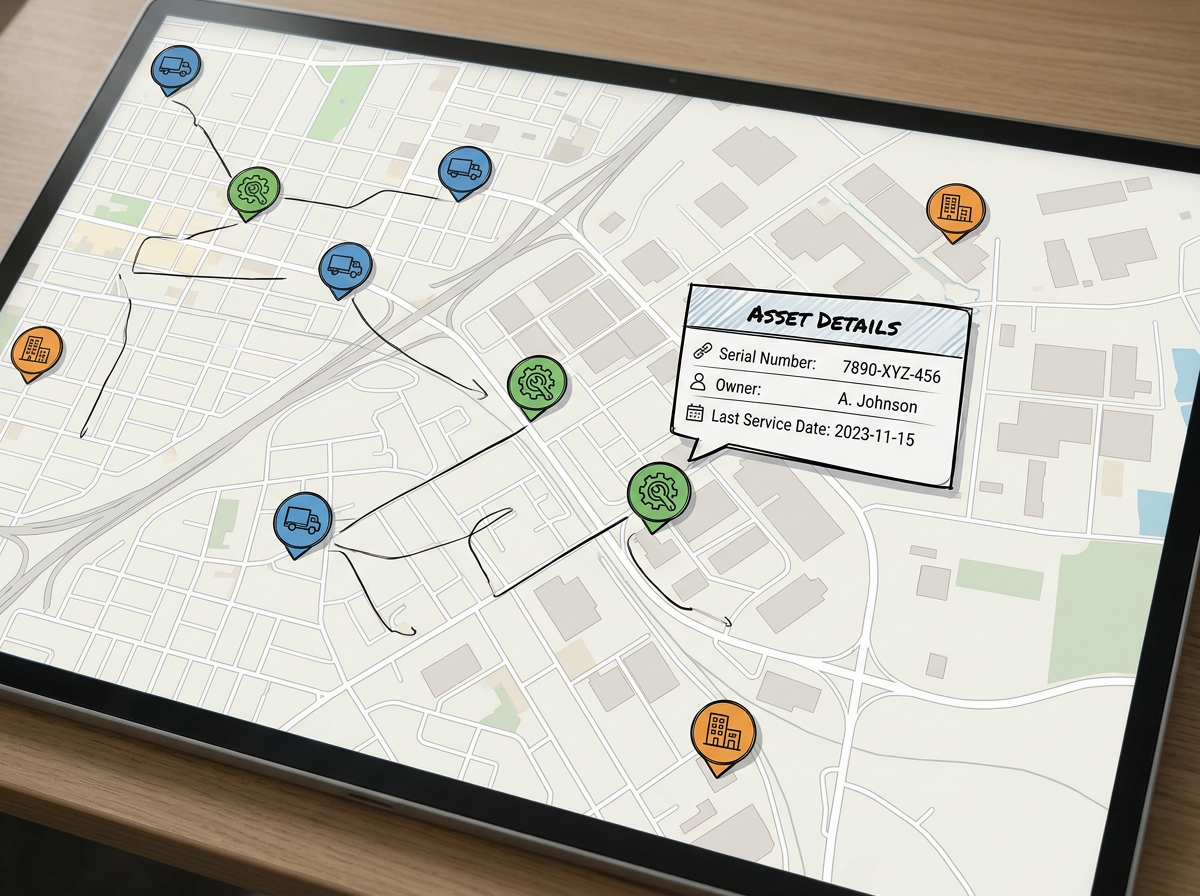
Plot every asset from your register. Group by type or owner and click a pin to see the full row. Share with the field team.
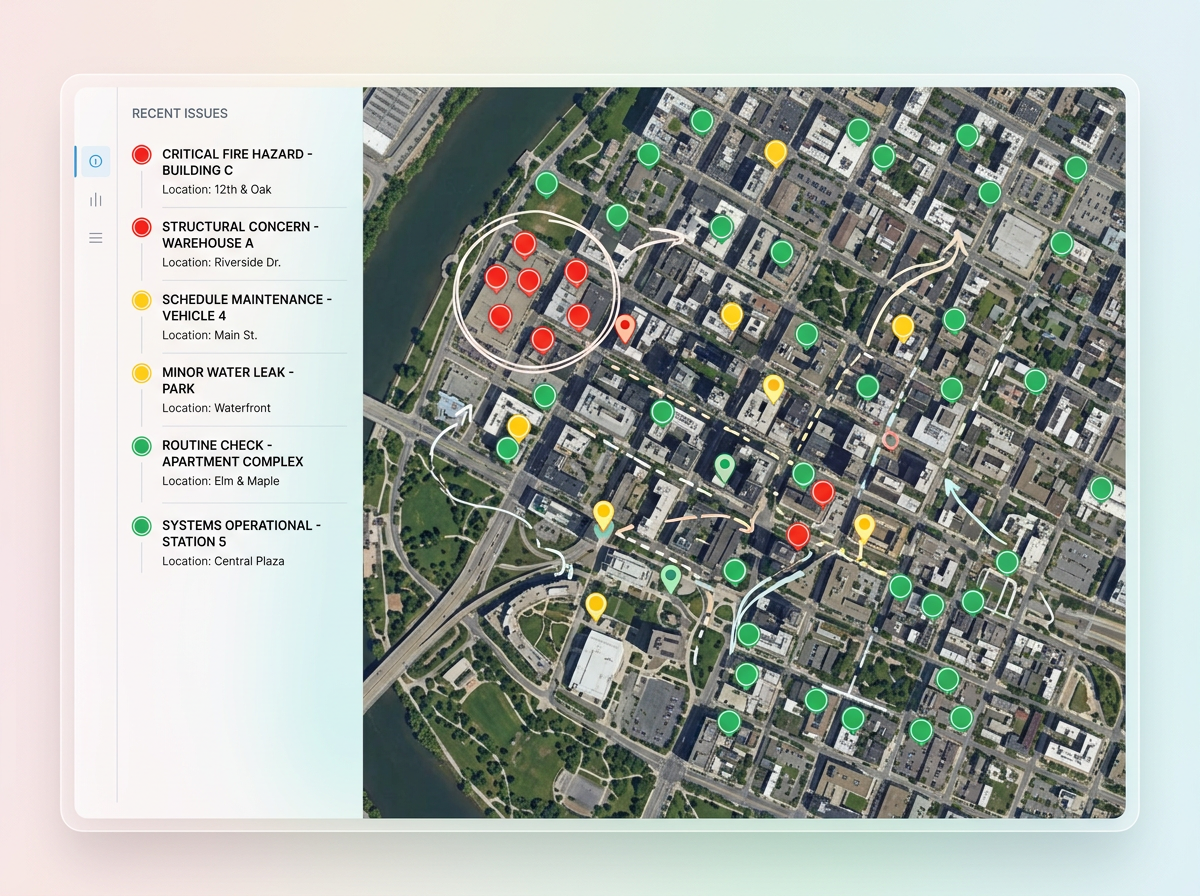
Turn an inspection sheet into a map of issues. Color by severity, filter by date, and share a clean view with the team that fixes them.
Scribble AI
Tell Scribble AI what you need. Try “draw a 500m buffer around every site,” “import this CSV and color by status,” or “measure the route from the depot to each stop.” It does it in seconds. No GIS training needed, and your team gets the same map, ready to share.
Try Scribble AI →CSV files, Excel files, and Google Sheets. The columns can hold full addresses, latitude and longitude, or zip codes and city names.
No. Drop the file as it is. We read the header row and ask which columns hold the location. Rows that fail to geocode are flagged so you can fix them.
Yes. Re-import the file and the map updates. Any link you have already shared shows the new pins right away.
Most plans handle thousands of rows in one map. For very large files, plot a sample first to make sure the columns are read correctly.